

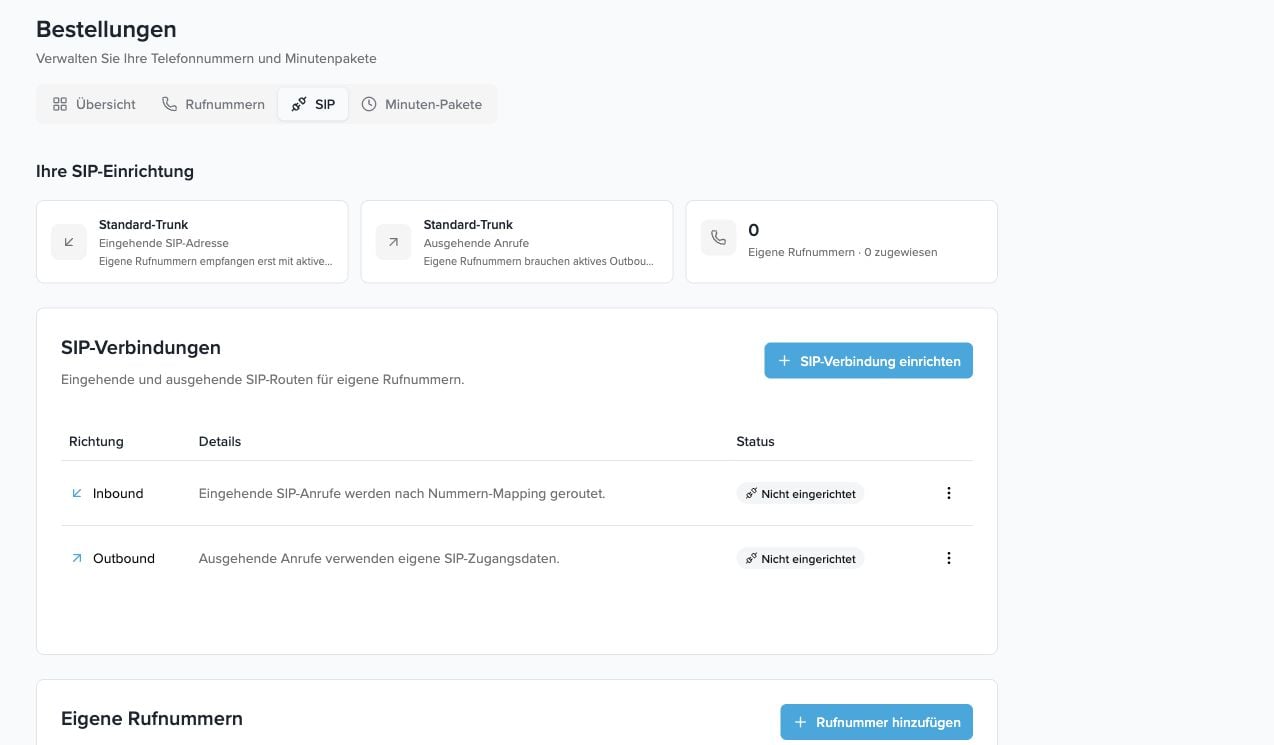
This feature is primarily intended for standalone customers who use their own SIP provider or SIP trunk. Miyon customers can also request and have the feature enabled if needed. Managed phone numbers from the Miyon inventory remain in the Phone numbers area.
Overview
The SIP setup consists of three parts:- Custom SIP trunk: the connection your SIP provider uses to forward inbound calls, either to your SIP address or to our gateway in the supported IP mode.
- Custom phone numbers: phone numbers or SIP identifiers that come in via your own trunk and are assigned to a voice agent.
- Outbound connection: your provider’s SIP destination and authentication for outbound calls and warm transfers.
Set up your provider
Use this overview to set up your SIP connection and phone numbers. For the steps in your telephony provider’s portal or phone system, follow the relevant guide:Twilio
Elastic SIP trunk, origination, termination, and SIP REFER.
NFON
IP authentication, number routing, and warm transfer.
3CX
SIP trunk, outbound rules, and forwarding to the voice agent.
SIP address
Every enabled account receives its own SIP address. This address is shown in the SIP area and can be copied directly.Activating the inbound SIP trunk
Open Phone numbers → SIP and select the inbound connection in the SIP connections area.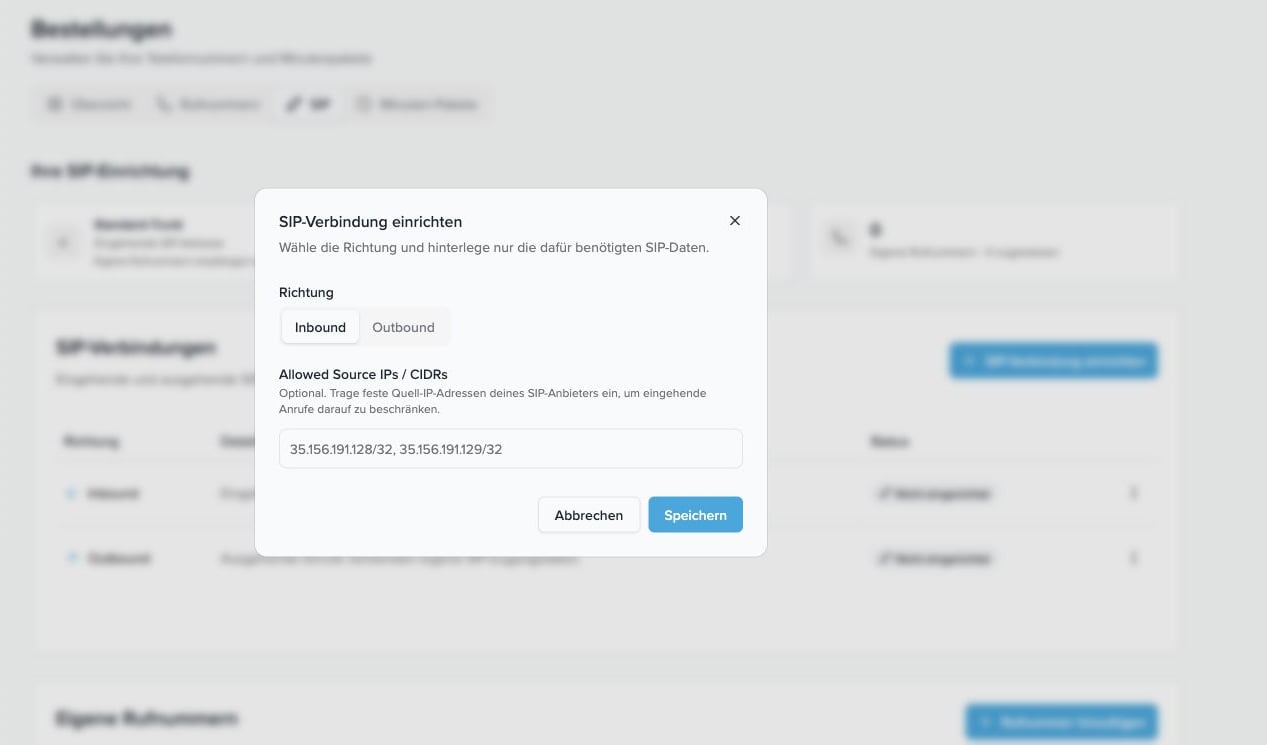
Adding a custom phone number
A custom phone number describes which called number or SIP identifier is routed via your own trunk to which voice agent.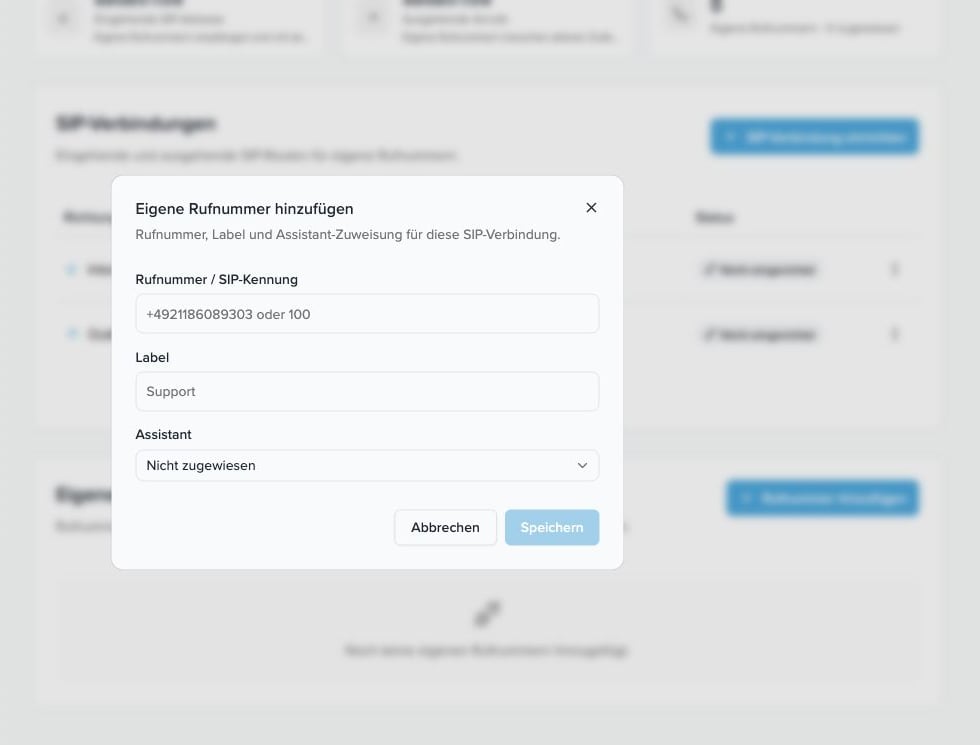
- Open Phone numbers → SIP.
- Click Add phone number.
- Enter the phone number in international format, for example
+491234567890. - Optionally, assign a label.
- Select the voice agent that should answer calls on this number.
- Save the phone number.
Setting up the outbound connection
For outbound BYOS calls and warm transfers, Miyon AI needs your provider’s SIP destination and the appropriate authentication. In the usual mode, you use a username and password. These credentials are not required for the NFON connection over IP.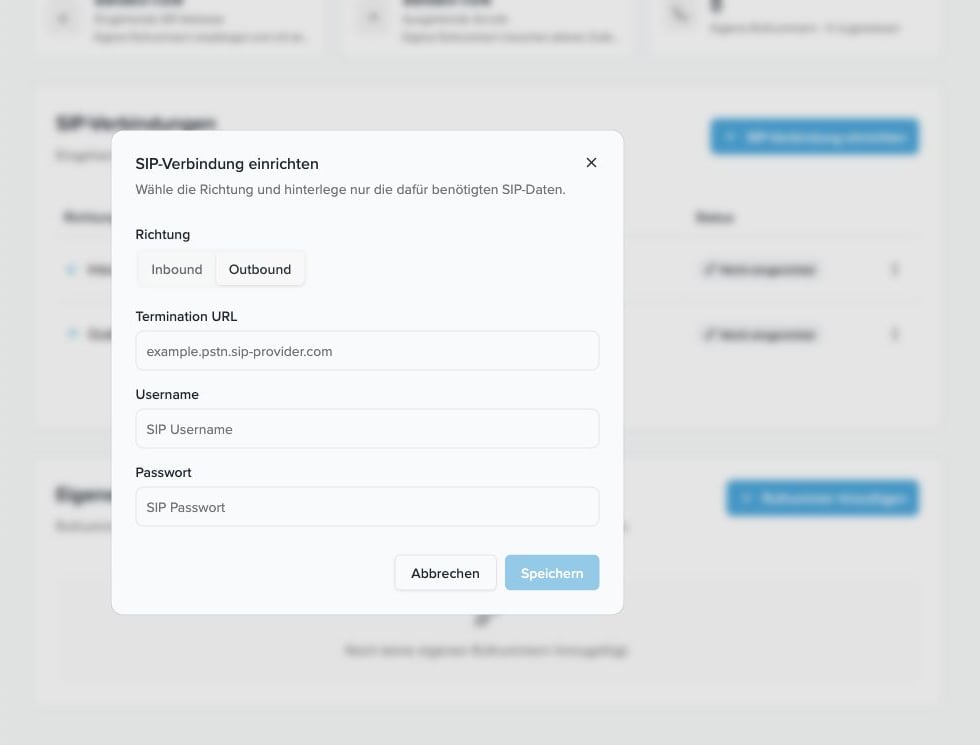
- Termination URL: your provider’s SIP domain or IP address, for example
example.pstn.sip-provider.com. - Username and Password: SIP credentials, if your provider uses credential-based authentication.
- IP authentication (no password): for the NFON connection documented here. This setting also applies to Inbound.
- Advanced → User-Agent (optional): only change it if your provider requires a specific value. For NFON, see the stored User-Agent association.
The inbound SIP address and the outbound termination URL are different things. The inbound SIP address points to Miyon AI. The termination URL points to your SIP provider.
Outbound calls with your own phone number
If you want to start outbound calls via your own SIP provider, first set up the outbound connection and then add the phone number that should be shown to the person being called.- Activate the outbound SIP connection.
- Enter your provider’s SIP destination and, if required, SIP credentials.
- Add the phone number under Custom phone numbers.
- Assign this phone number to the voice agent that should handle the outbound calls.
- Start the call under Outbound Calls with that exact voice agent.
Understanding the status
- Inbound active: inbound calls through the configured SIP connection can be processed.
- Inbound inactive or not set up: custom phone numbers remain saved, but inbound BYOS calls are not processed through this connection. Existing Miyon phone numbers and standard telephony paths are not affected.
- Outbound active: outbound calls and warm transfers can run via your own SIP provider.
- Outbound not set up: outbound BYOS calls are not active. Existing Miyon phone numbers and standard telephony paths are not affected.