

Requirements and connection details
You need access to Template, PBX Endpunkt, and Nummernrouting in the NFON portal, plus the SIP feature enabled under Phone numbers → SIP in Miyon AI. Have your NFON phone numbers and the public signaling IP addresses or networks provided by NFON for your connection ready.
The gateway IP is stored in NFON as the destination for inbound calls and for IP authentication of outbound calls. Enter the NFON source addresses on our side instead. Do not confuse these two sides of the connection.
1. Create a template in NFON
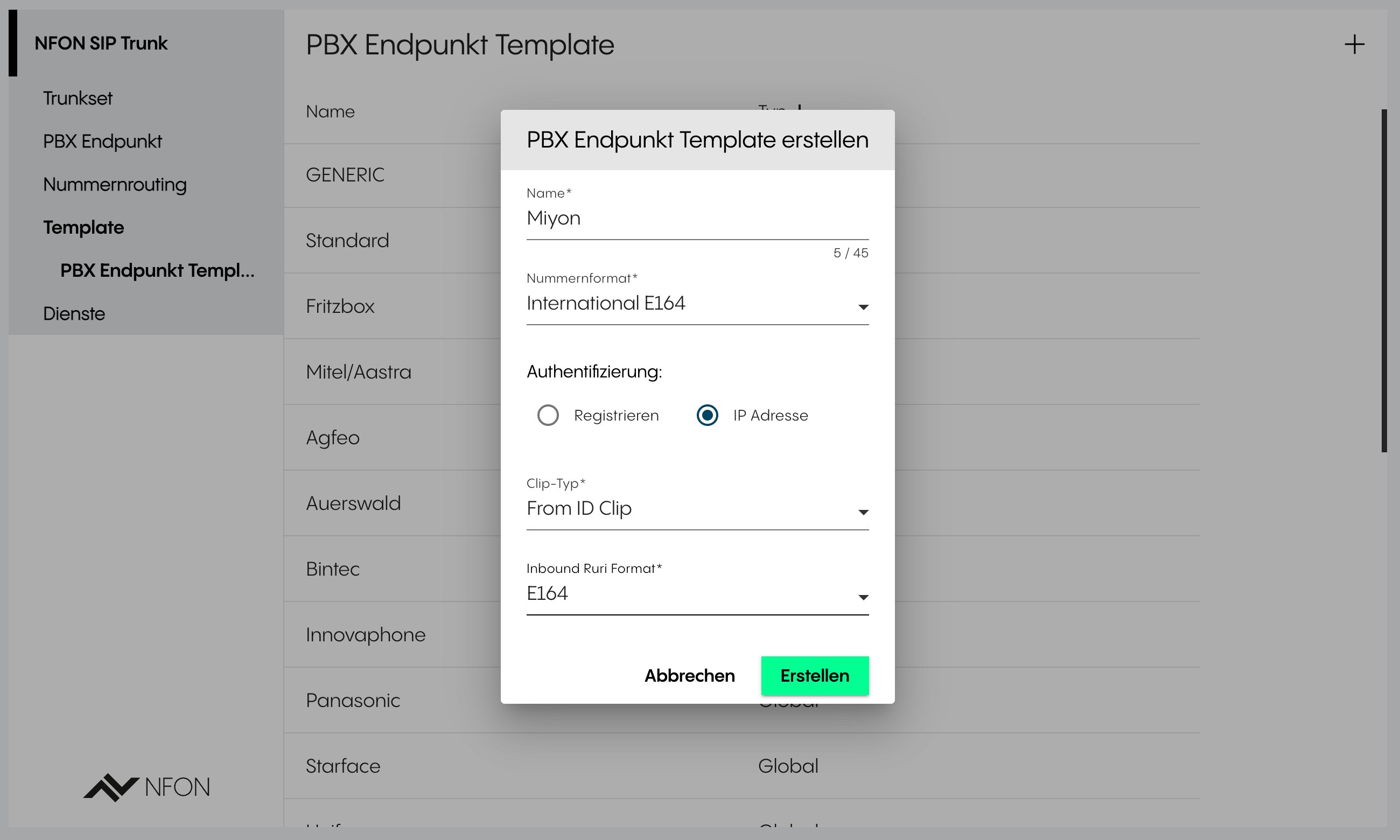
Open NFON SIP Trunk → Template → PBX Endpunkt Template and click +.
Save with Erstellen. Make sure you select IP Adresse for authentication. The Registrieren option is not part of this setup.
2. Add a PBX endpoint to the trunk
Open PBX Endpunkt, select your existing main SIP trunk or its trunkset, and click +. The name SIP Trunk STARFACE in the screenshots is an example; select the trunk your phone numbers belong to. Enter the following in the PBX Endpunkt erstellen dialog: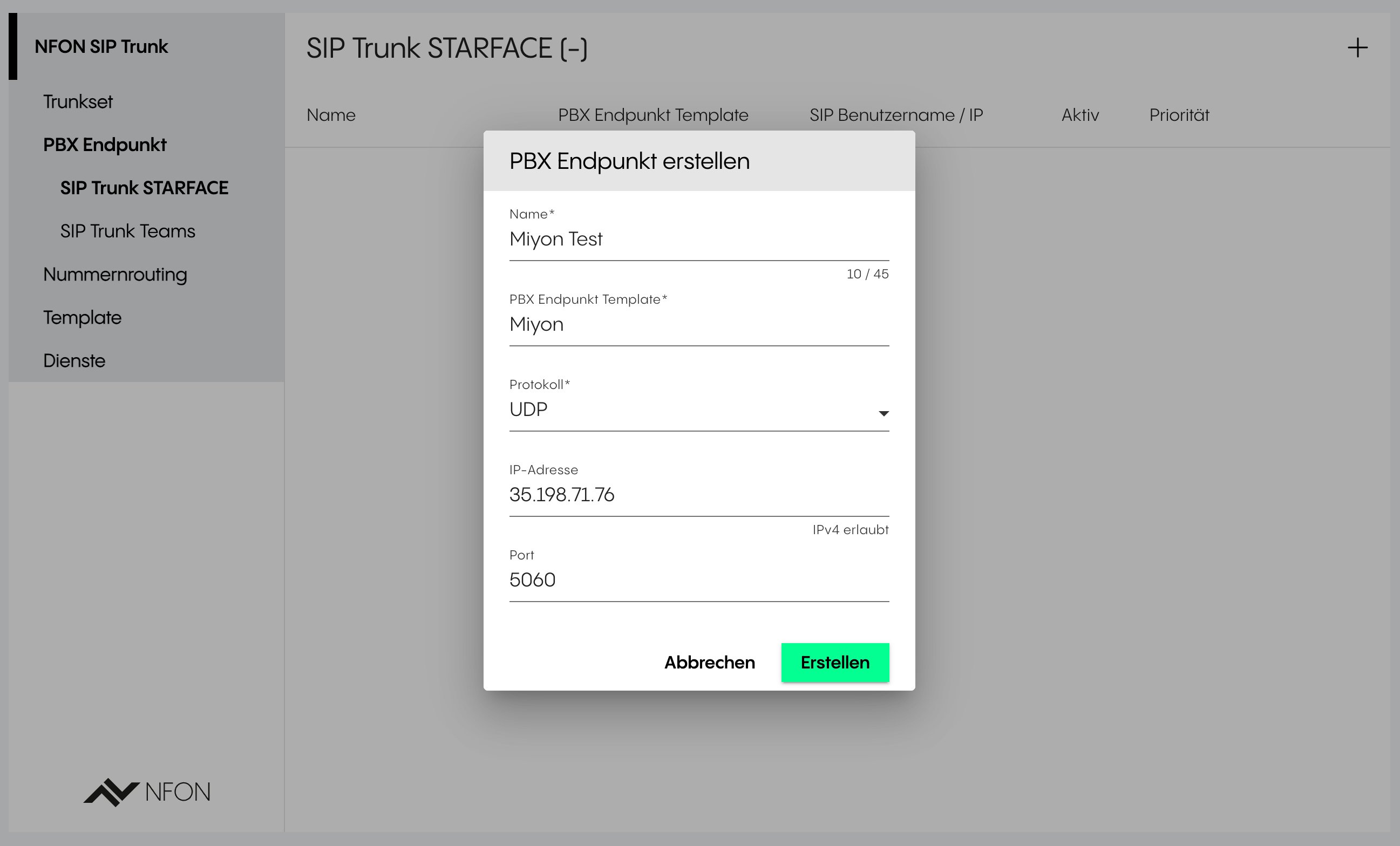
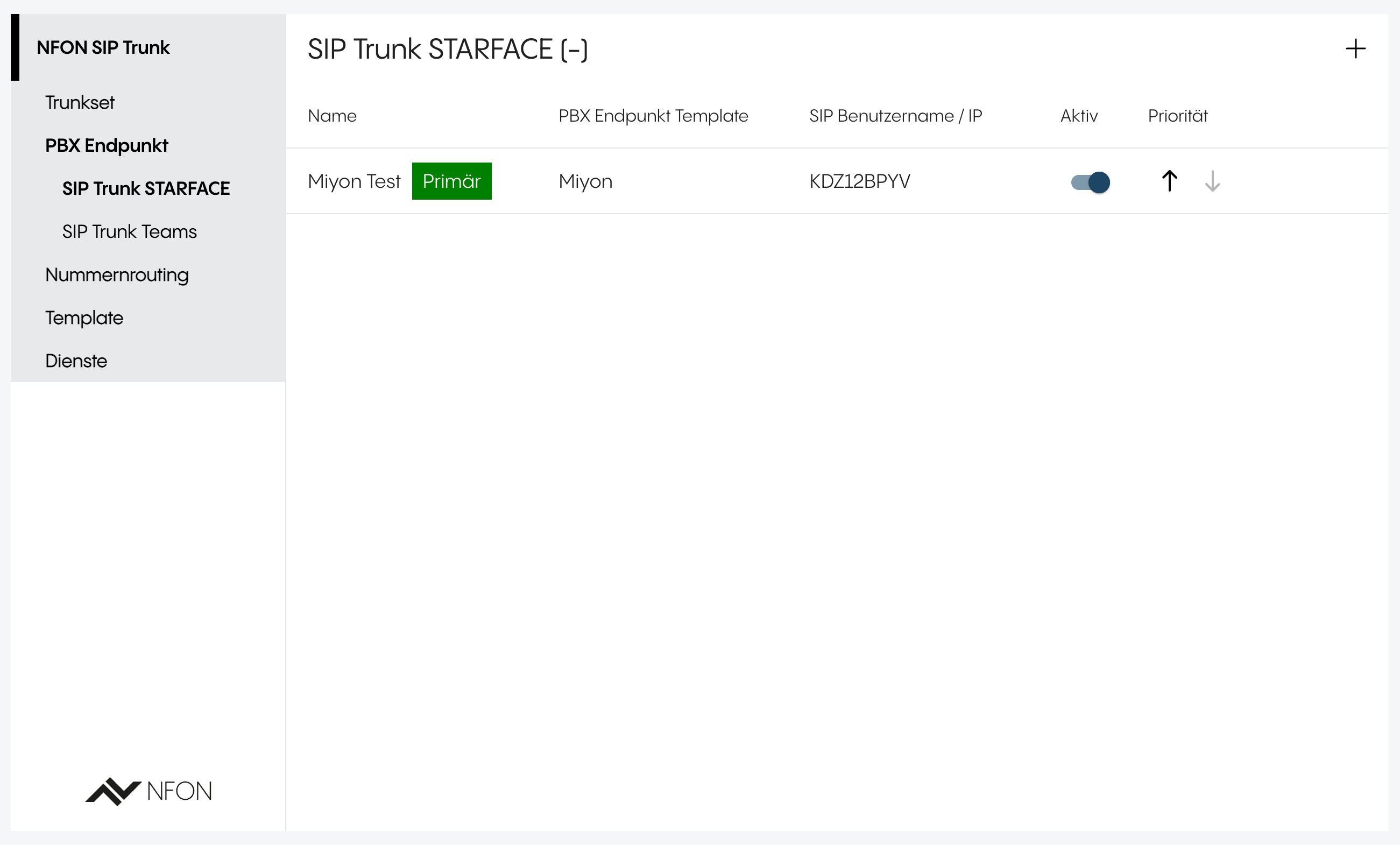
Endpoint priority applies to the trunkset. If the trunk is already in use, check which other phone numbers and phone systems are routed through it before changing the primary endpoint.
3. Route phone numbers in NFON
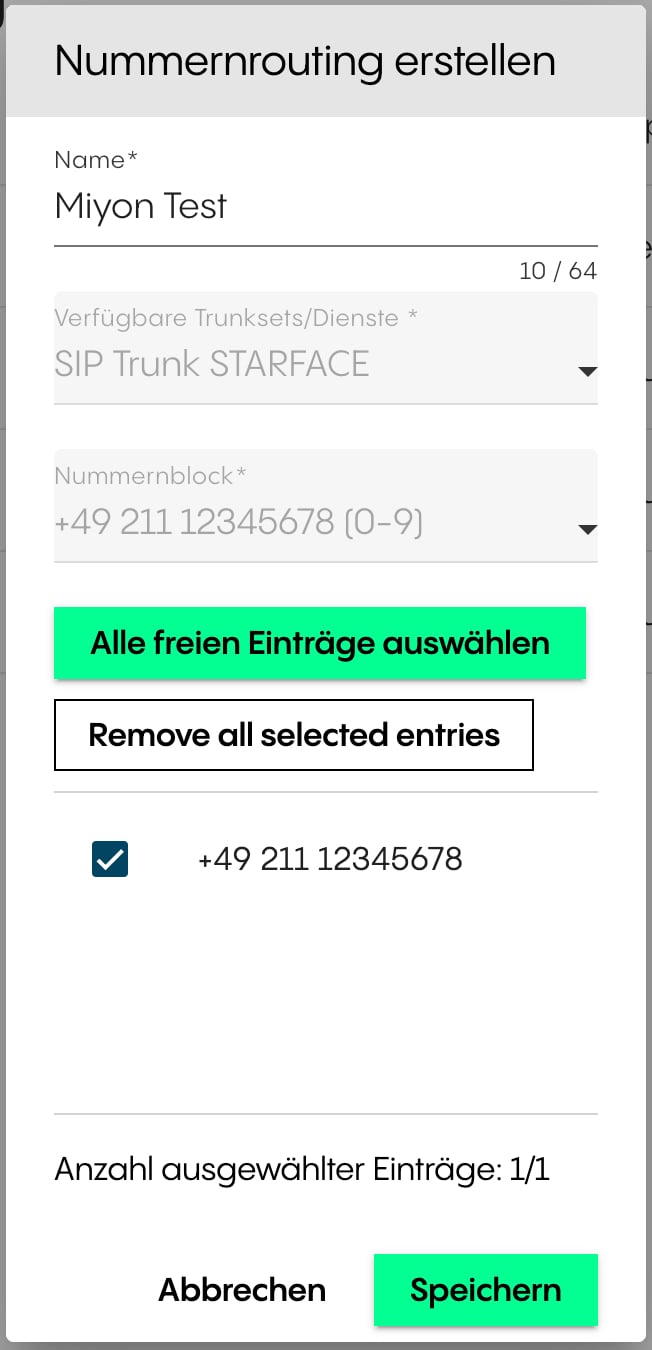
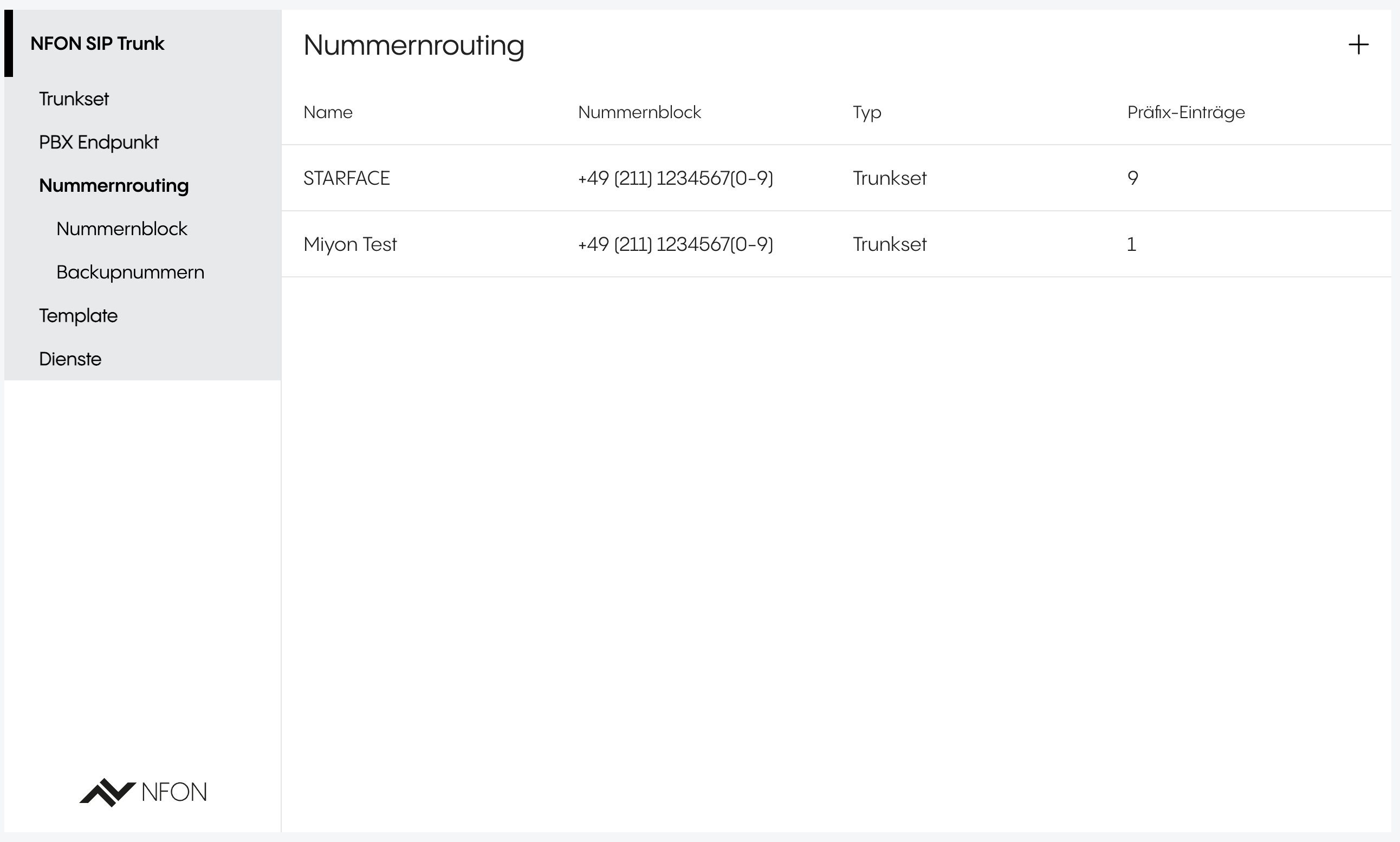
Open Nummernrouting and click +.- Give the routing a name.
- Under Verfügbare Trunksets/Dienste, select the same main trunk to which you added the new PBX endpoint.
- Select the appropriate Nummernblock.
- Select the phone number or numbers your voice agent should handle.
- Save the routing.
4. Set up inbound calls in the platform
In Miyon AI, open Phone numbers → SIP → Set up SIP connection → Inbound.- Enable Receive calls via IP.
- Under Allowed Source IPs / CIDRs, enter the NFON signaling network
109.68.96.0/21, unless NFON specifies different source addresses for your connection. You can separate multiple IP addresses or CIDRs with commas. - Save the connection and make sure Inbound is active.
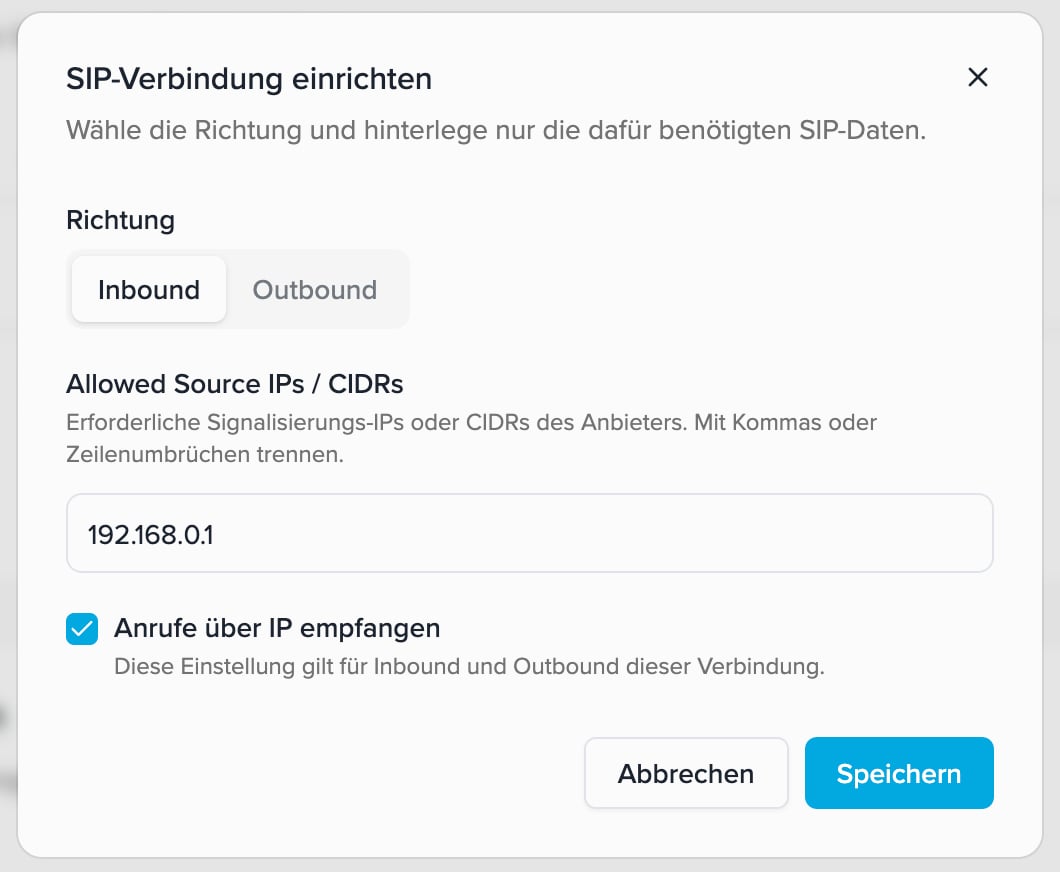
109.68.96.0/21 as its signaling network. Use this network if it matches the current connection details from NFON; different details provided by NFON for your connection take precedence.
The IP setting applies to Inbound and Outbound of the same SIP connection. For this NFON setup, you do not need to enter your personal inbound SIP address in the NFON portal: NFON sends directly to the gateway IP. Miyon AI uses the allowed source and the full called number to route the call.
Assign the number to the voice agent
Under Custom phone numbers → Add phone number, add each number routed by NFON and assign it to the required voice agent. Use the exact full E.164 number sent by NFON, for example+4921112345678.
An additional or missing final digit means a different phone number. A number block in NFON does not replace assigning the individual phone numbers in Miyon AI. See Custom SIP Connection for details.
5. Set up outbound calls
Open Set up SIP connection → Outbound.- Enter
siptrunk.cloud-cfg.comas the Termination URL (domain or IP). - Keep IP authentication (no password) enabled. In this mode, you do not need a SIP username or SIP password in the platform.
- If needed, open Advanced to set the User-Agent (optional). Read the next section before making your first test call.
- Save the connection and make sure Outbound is active.
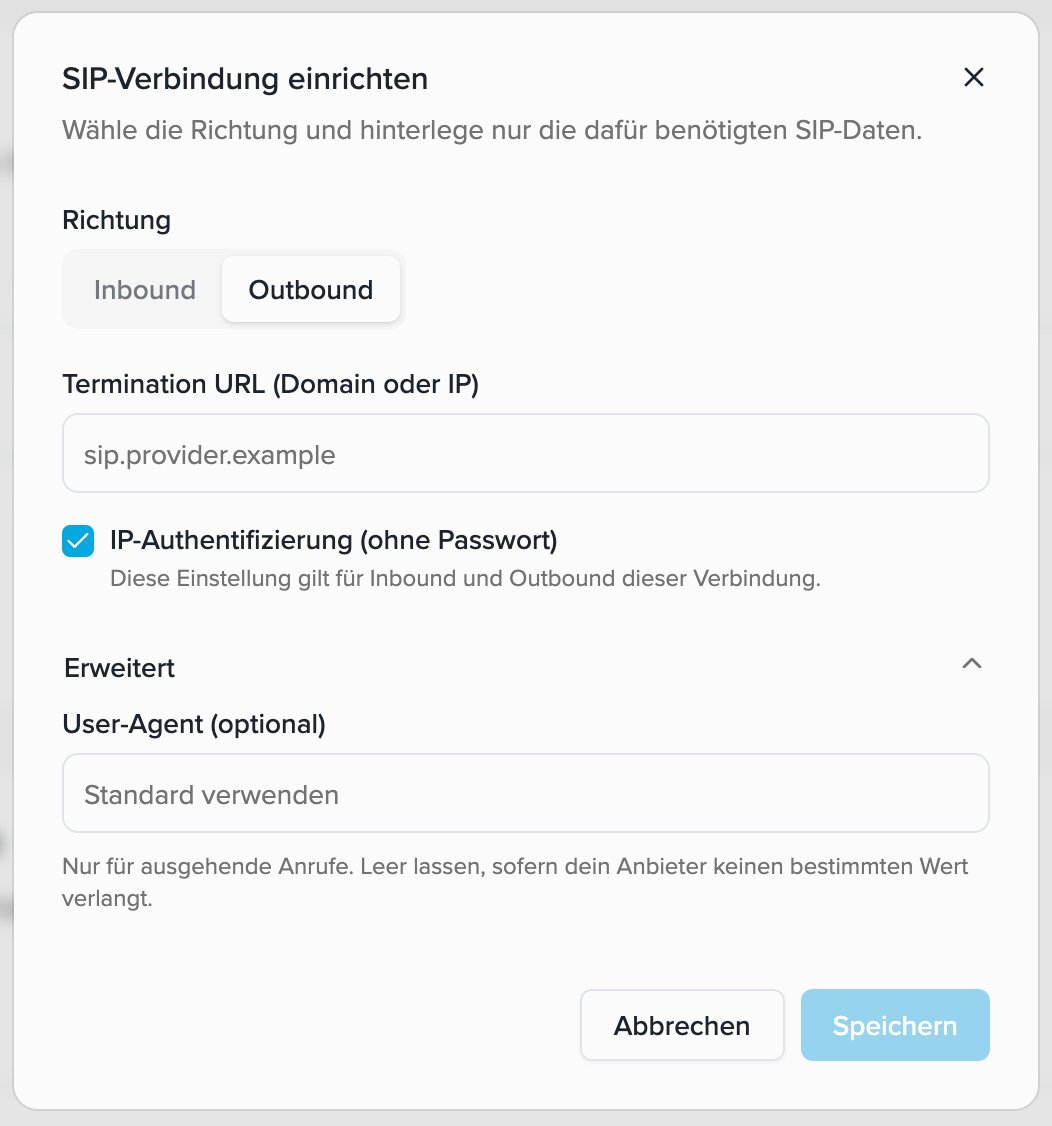
sip.provider.example placeholder in the screenshot is not an NFON address. Enter siptrunk.cloud-cfg.com there. The termination URL is a single outbound SIP destination; a list of source IP addresses belongs exclusively in the Inbound setting.
For outbound calls, use a phone number from your NFON trunk assigned to the calling voice agent under Custom phone numbers. Then start a test under Outbound Calls.
Set the User-Agent before the first call
NFON remembers the User-Agent of a PBX endpoint. If no value is stored yet, NFON learns it from the next outbound SIP call setup (INVITE). For subsequent calls, NFON compares the first five characters. A different value can therefore prevent a call even when the IP address is correct. This behavior is described on page 37 of the NFON manual.
For a new connection, you can leave the optional field empty to use the default or set a fixed value before the first call. Keep that value unchanged afterwards. No particular brand name is required.
To change the User-Agent of an endpoint that has already been used:
- Save your chosen value under Outbound → Advanced → User-Agent (optional).
- Open the corresponding PBX Endpunkt in the NFON portal.
- Click Reset des User Agents.
- Then start an outbound test call from Miyon AI. NFON learns the newly sent value from that call.
6. Set up and test warm transfer
For NFON, use warm transfer when the voice agent needs to hand a caller over to a colleague. A working outbound connection is required. While the inbound conversation stays connected, Miyon AI starts an additional outbound call through your NFON trunk to the transfer destination. Once the handover is accepted and confirmed, the participants are connected. The trunk needs at least two concurrent call channels for the inbound call and the additional outbound call. Other ongoing calls require additional capacity. Set up the handover using the Warm Transfer guide. Test a normal outbound call first, then test the transfer, including acceptance and audio in both directions.SIP REFER: The NFON SIP Trunk Flexx manual does not describe how to configure in-dialog REFER, which transfers a call within an existing SIP dialog. Use warm transfer for call handovers. The outbound connection must be set up because the handover starts an additional outbound call.
Check the connection
If you need support, note the test time and time zone, caller and destination numbers, and the affected direction. These details help identify the calls in the SIP logs on both sides.